Table of Contents
Manage Secrets for App Registrations
Use this guide when a client secret for the Engine or Portal app registration is expiring (or has expired), and you need to rotate it safely.
For database usernames/passwords, use Manage Credentials for Database.
Required roles and permissions
Tip: You do not need to hold all roles yourself. If needed, ask your SysAdmin or IT admin to perform these steps or grant the required access.
Make sure you have at least these roles to perform the secret rotation steps & update Key Vault secrets:
- App registration updates: Owner
- Key Vault secret updates: Key Vault Secrets Officer
Using Azure Portal
Step 1. Rotate the App Registration Secret
- Confirm which app secret you are rotating (
EngineorPortal). - In Azure Portal, go to App registrations → All applications and search
SSW.EagleEye. - Open the target app (no secret management required for the Api app):
SSW.EagleEye.EngineSSW.EagleEye.Portal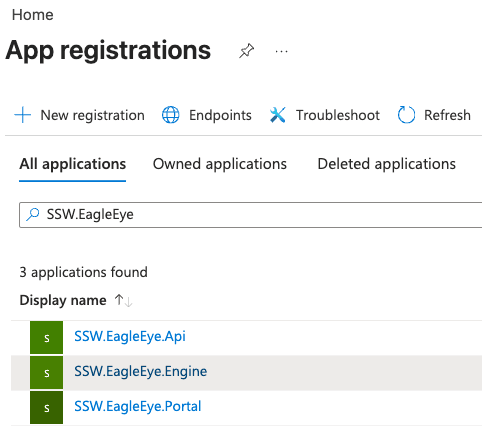
- Go to Manage → Certificates & secrets.
- Click New client secret, set a clear description (for example,
EngineSecret-Updated-YYYY-MM-DD), choose expiry, then click Add.- Recommended: create the new secret first, verify, then delete the old one.
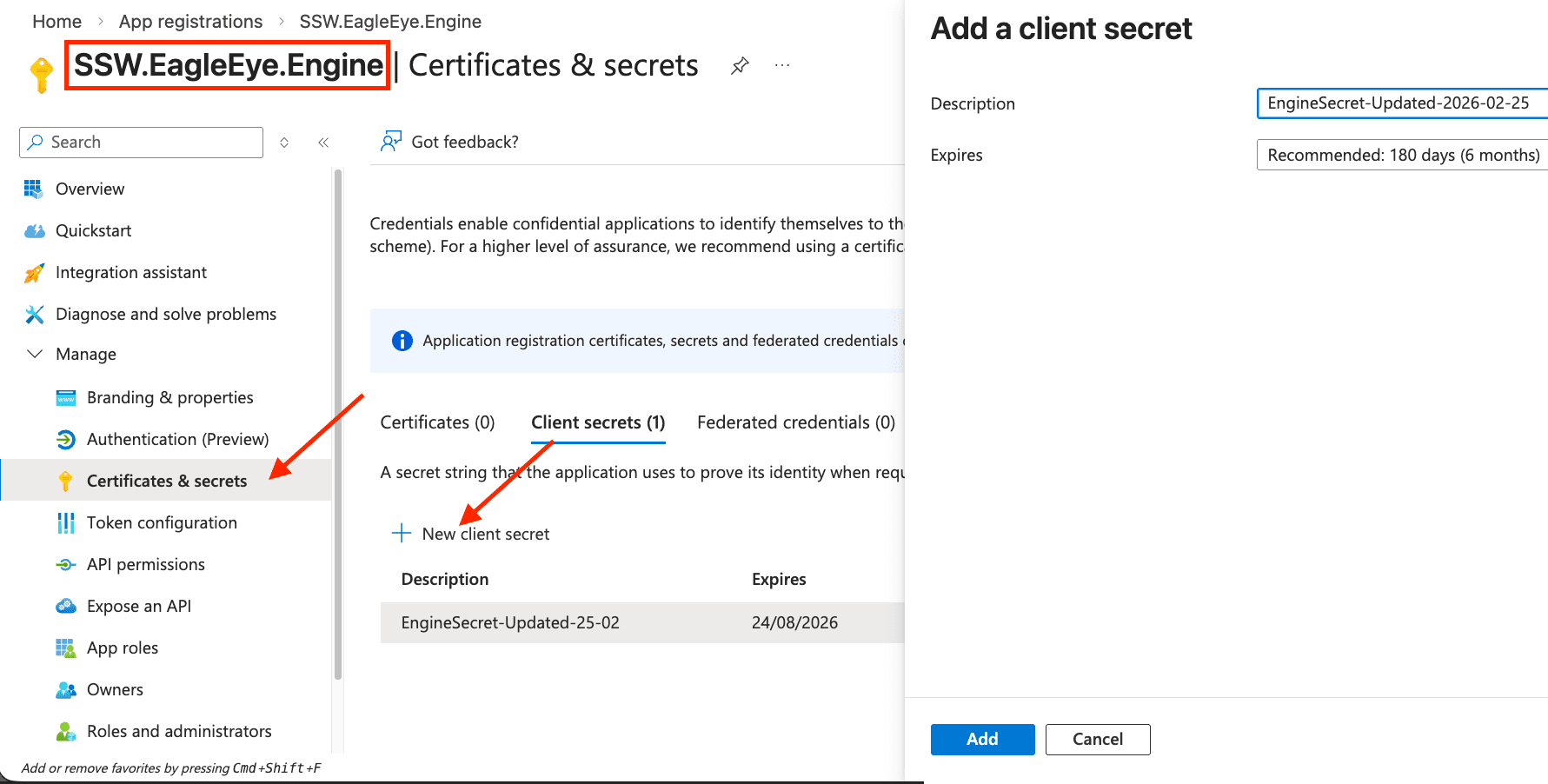
- Recommended: create the new secret first, verify, then delete the old one.
- Copy the secret value immediately (it is shown only once).
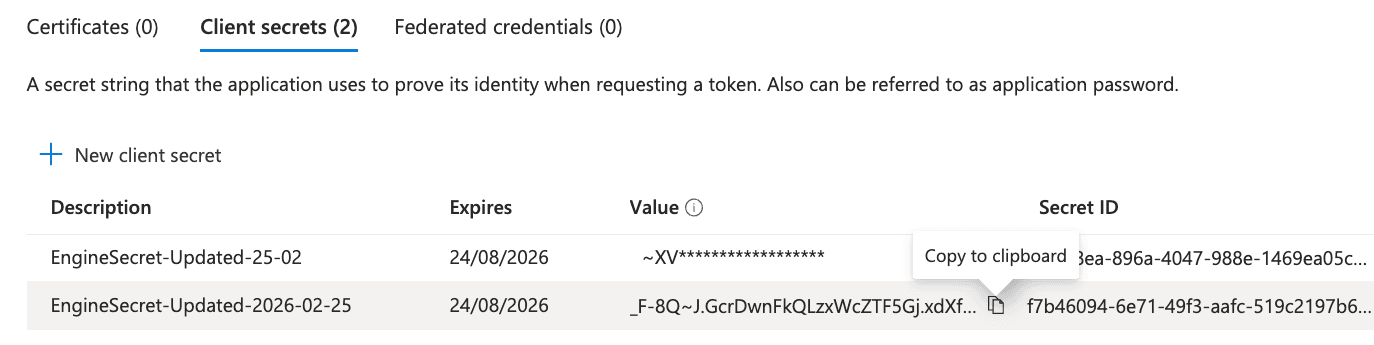
Tip: Keep the new secret in temporary notes until Key Vault is updated, then delete from the temporary notes immediately.
For more info on these app registrations and the Master app flow, see App Registrations & Permissions.
Step 2. Update the secret value in your EagleEye Key Vault
- In Azure Portal -> Resource groups, select the resource group you created during EagleEye installation.
- Open the EagleEye managed application project.
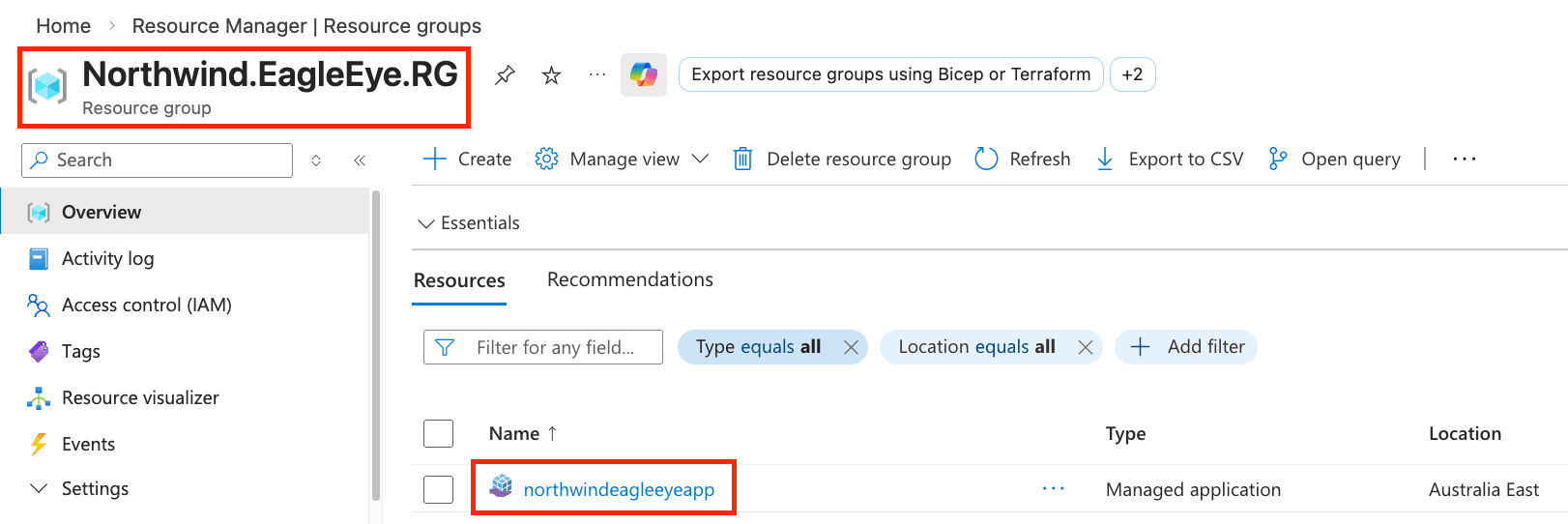
- Open the Managed resource group (named
mrg-ssweagleeye-xxx).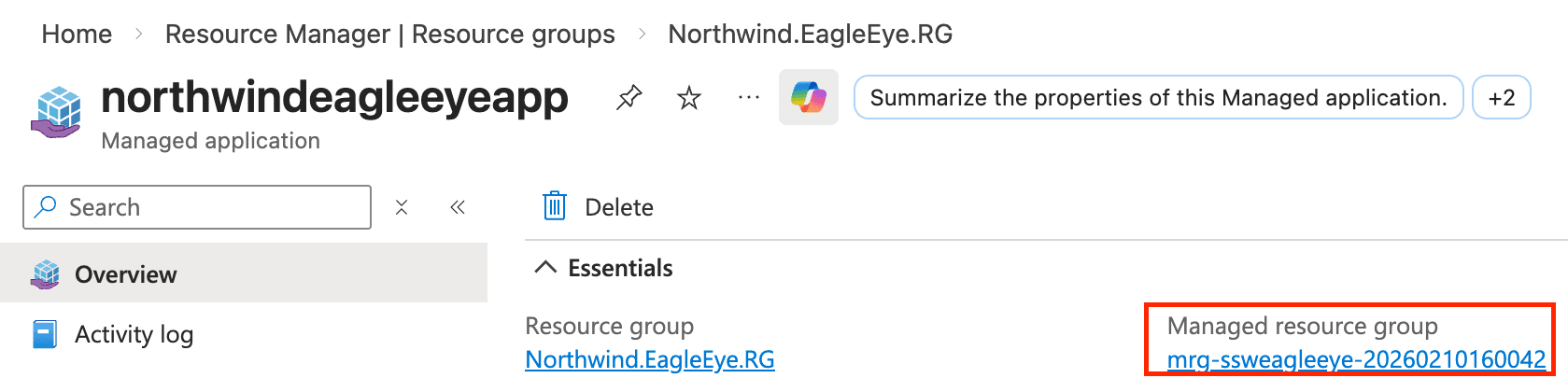
- Search for
kv-sharedin your Managed Resource Group & click on the Key Vault (namedkv-shared-xxx).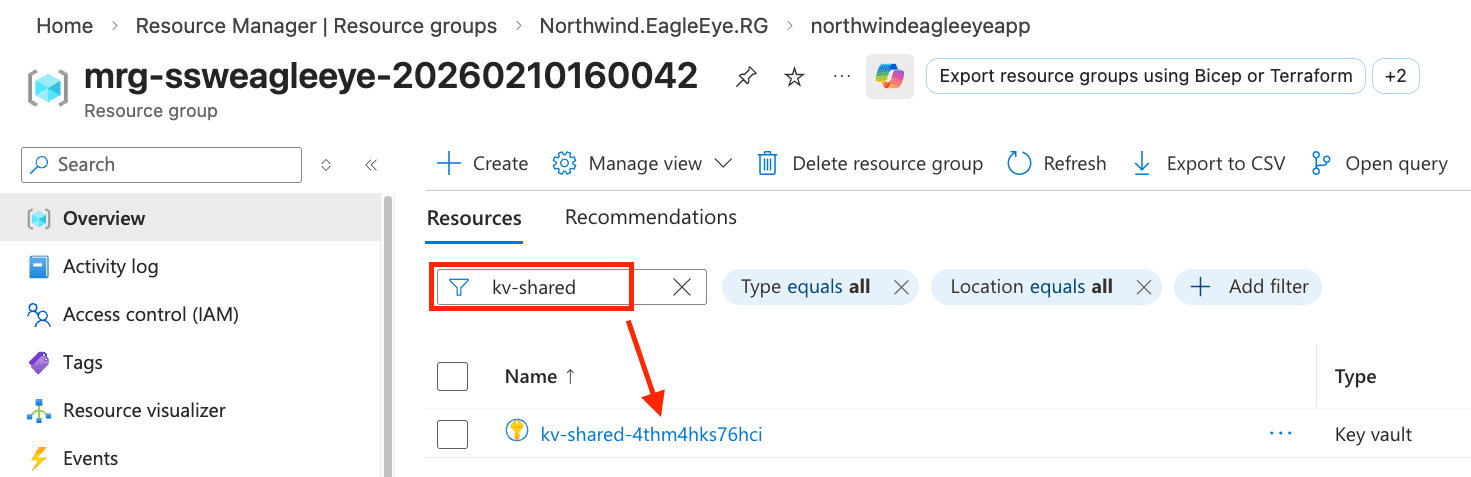
- Go to Secrets and open the matching secret name (based on which app you rotated):
SSW.EagleEye.Engine→AppRegistration-ClientSecretSSW.EagleEye.Portal→AppRegistration-ClientSecret-Portal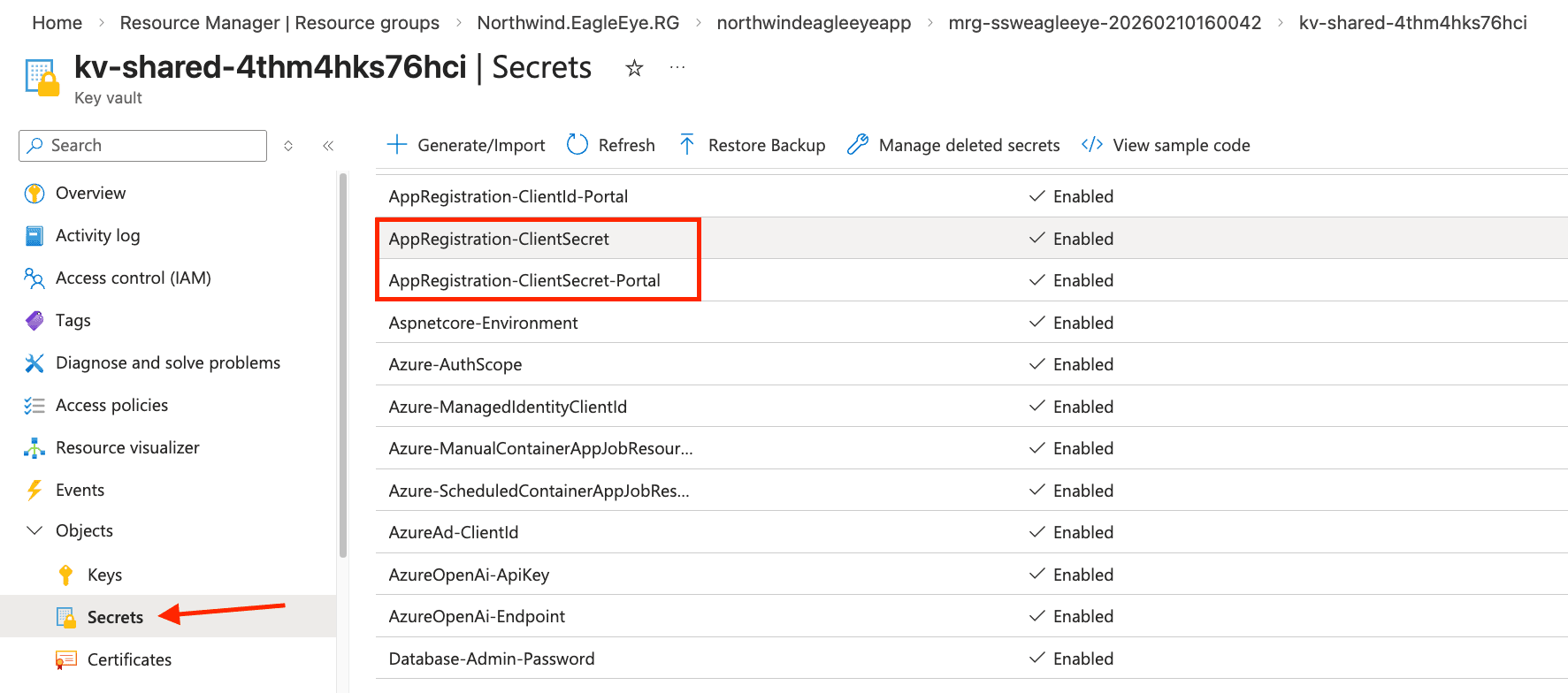
- Create a new secret version with the copied client secret value.
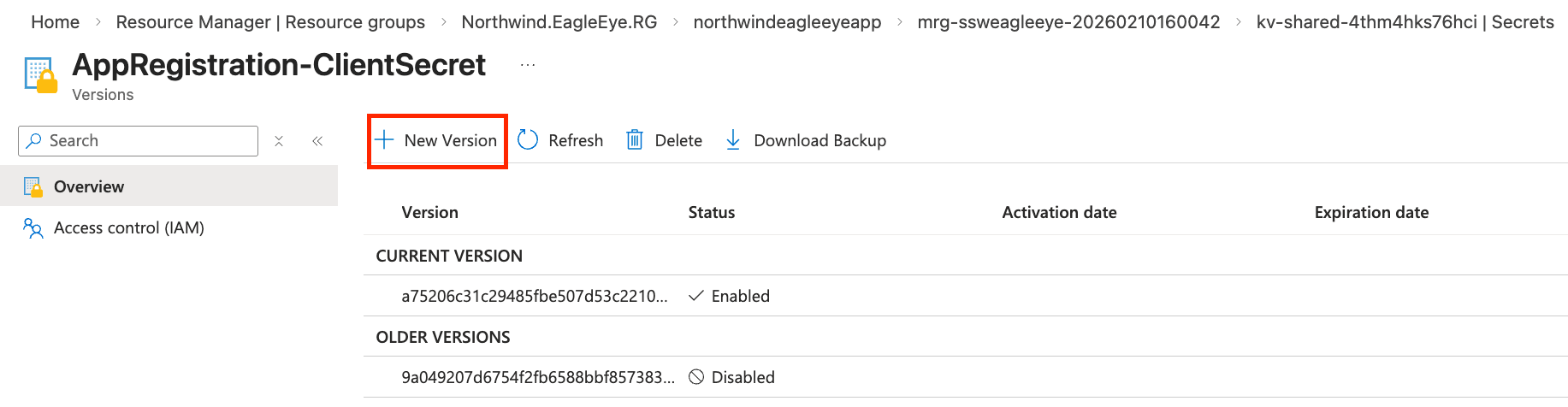
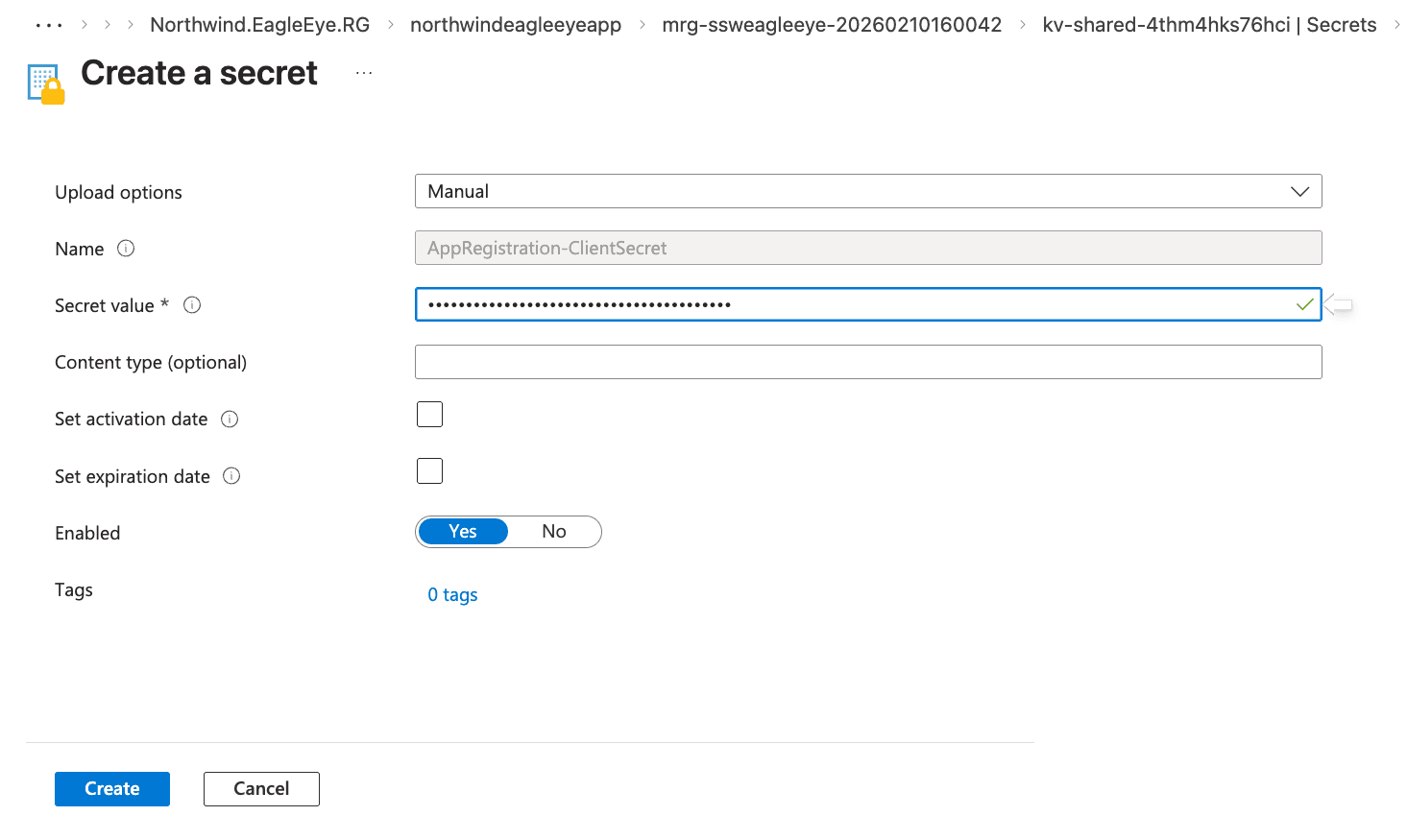
- Right-click the previous secret version and disable it.
- Confirm only new version is enabled
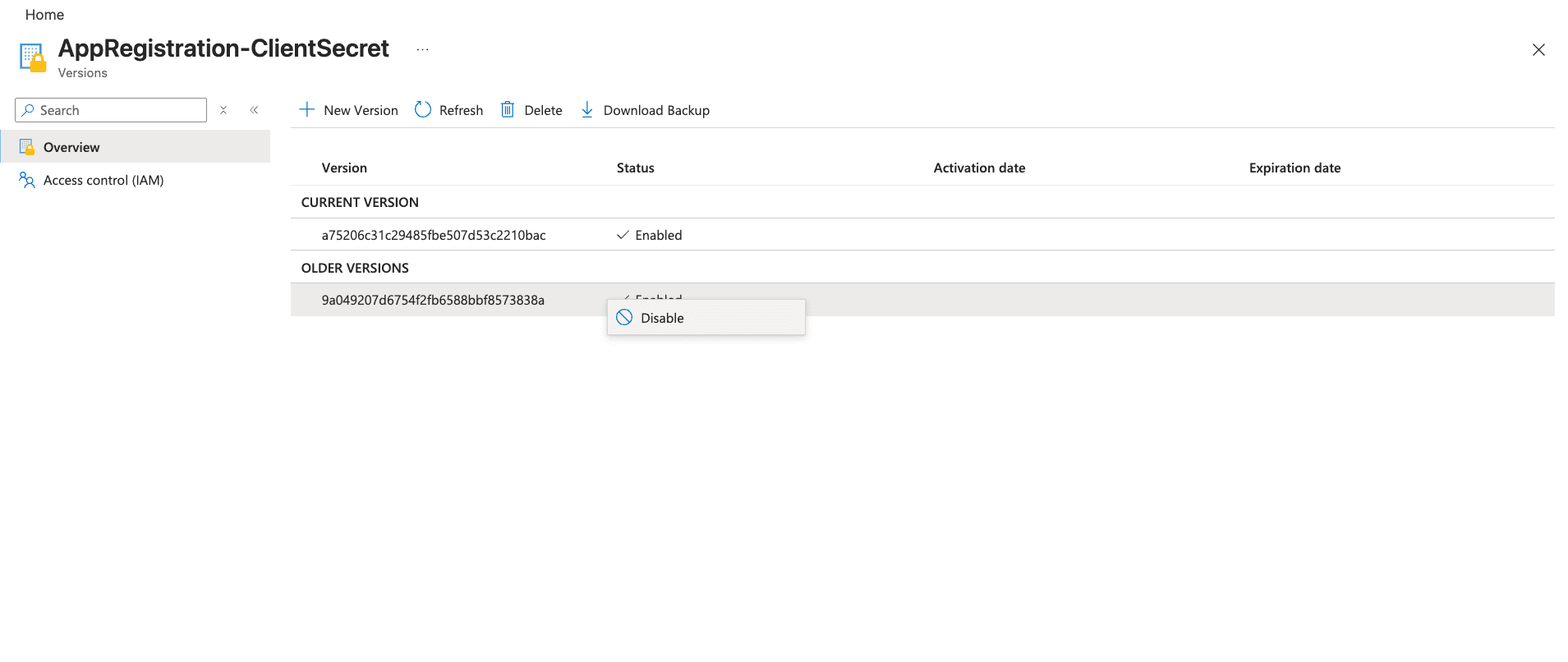
Step 3. Restart the App (only for Portal)
- If you rotated the Portal app secret, we need to restart the Portal container app (
ca-nextjs-xxx) so it picks up the new value.
To restart:
- Find your portal container app in your managed resource group (same way you found the Key Vault
kv-shared-xxxin step 2 above) - Open the Portal container app (
ca-nextjs-xxx).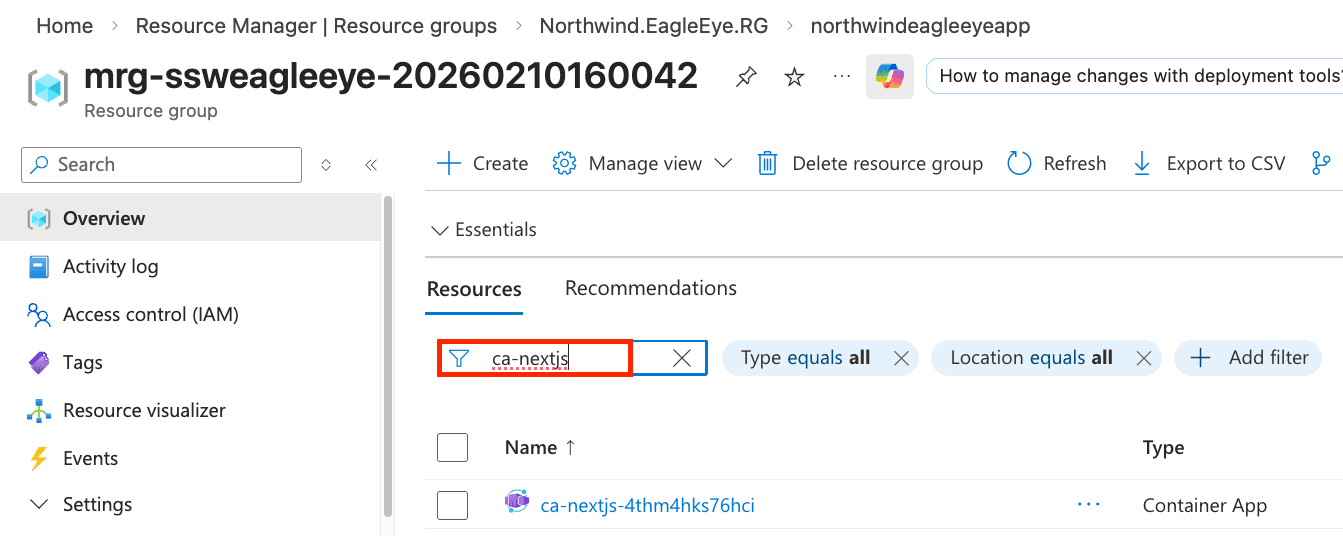
- Select Stop, then Start.
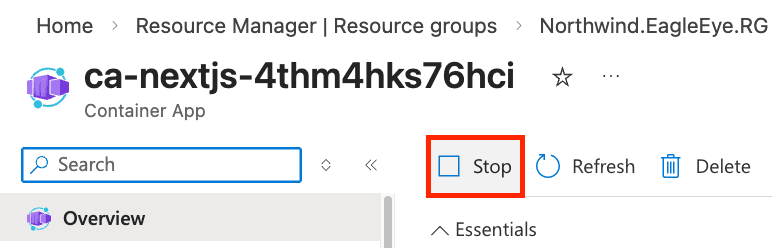
Step 4. Verify
- Confirm the new app secret exists and is not expired.
- Confirm Key Vault shows the new latest secret version.
- Confirm the old Key Vault secret version is disabled.
- For Portal: You can logout & confirm you can log back in
- For Engine: Run a manual scan & confirm engine is working
- After validation, remove the old app registration client secret if still present.
Using Azure CLI (optional)
Use CLI only if you are comfortable handling secrets in terminal history.
Recommended: run these commands in Azure Cloud Shell.
Step 1. Get App ID by display name
Important: Run the full sequence of steps for one app before starting the other.
The commands use shared variables ($APP_ID,$NEW_SECRET, etc.) that will be overwritten if you try to do both at the same time.
For Engine:
Or for Portal:
Then run:
Step 2. Add a new client secret (append, do not replace existing)
You can set duration using --years
or for 6 months use --end-date (syntax differs by OS):
Linux / Azure Cloud Shell:
macOS:
Step 3. Find the EagleEye Key Vault and update the secret value
Key Vault name
- Find your EagleEye managed Key Vault name using Azure Portal | Step 2 (1-4) above,
- Or do a global search in your Azure portal for the term
kv-shared. If you have multiple search results, make sure to select the one inside the EagleEye managed resource group.
Set the name in the variable (replace with yours e.g., kv-shared-4thm4hks76hci):
New secret value
For Engine:
Or for Portal:
Step 4. Disable old Key Vault secret version
List all versions sorted newest first.
The output will look similar to this. The first row is always the current (newest) version.
Any other rows that are still Enabled: True are old versions that should be disabled:
Copy the GUID at the end of the Version URL for the old enabled row(s) e.g., a75206c31c29485fbe507d53c2210bac.
Set it as a variable:
Then disable it:
Step 5. Delete old app credential after verification
List all credentials sorted by creation date, newest first:
The output will look similar to this - the first row is the new secret you just created. Copy the KeyId of the old one(s):
Set the old key ID:
Then delete it:
Then you can run the list command again to confirm only the new secret remains.
Step 6. Optional: restart Portal container app (if Portal secret changed)
Tip: It is easier to restart from the Azure Portal - follow Using Azure Portal → Step 3 above.
The Azure CLI is a bit flaky when restarting the container app.
Notes
- Rotate secrets before they expire where possible.
- Do not delete and recreate app registrations for standard secret rotation.