Table of Contents
Overview
The Master app is an Azure App Registration you create in Step 2 - App Registration to automate the EagleEye deployment.
It is required only during installation. Once installation succeeds, EagleEye runs entirely using the three app registrations it created (Engine, Api, Portal) and the Master app is no longer used by any running service.
For a full explanation of what the Master app does and what permissions it holds, see App Registrations & Permissions.
ℹ️ Important: Only delete the Master app after your deployment succeeds and you can access the EagleEye Portal.
1. Confirm the deployment succeeded
Follow Step 3.3 - Verify Deployment to confirm EagleEye is up and you can sign in to the Portal before proceeding.
2. Delete the Master App
Required permissions
If you created the Master app yourself during installation, you already have the permissions needed to delete it.
If someone else created it, you will need the Application Administrator role in Entra ID to delete it.
⚠️ Warning: Only delete the Master app (the one you named in Step 2, for exampleNorthwind.EagleEye.Master).
Do not delete the three app registrations created by EagleEye during deployment (SSW.EagleEye.Engine,SSW.EagleEye.Api,SSW.EagleEye.Portal). Those are required for EagleEye to run.
Steps
- Go to Azure Portal.
- Search for App registrations in the top search bar and select it.
- Click the All applications tab.
- Search for your Master app name (for example,
Northwind.EagleEye.Master). - Click on the Master app to open it.
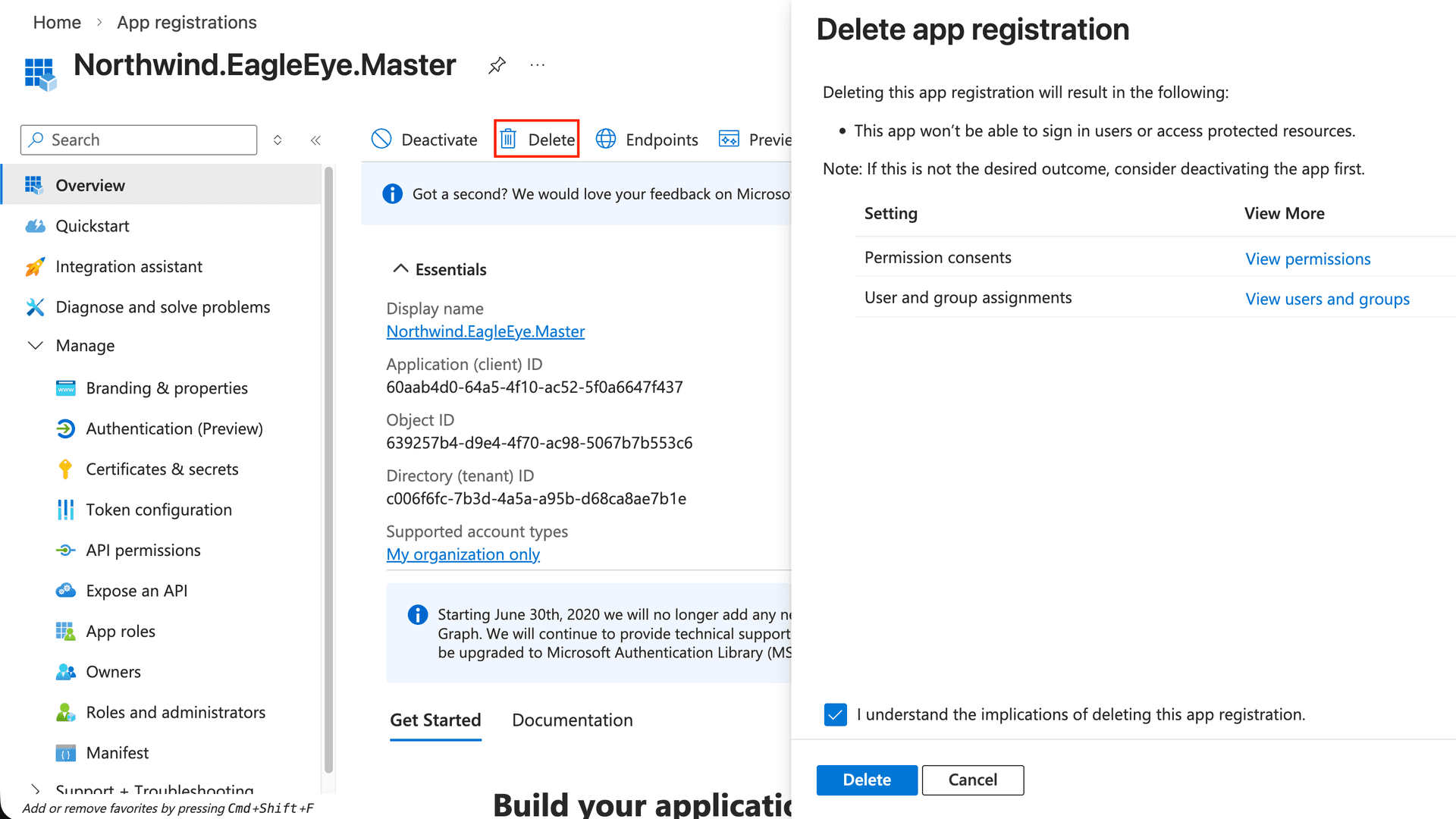
- Click Delete in the top action bar.
- Read the confirmation dialog and click Delete to confirm.
💡 Tip: If you are unsure which app is the Master app, look for the app you named in Step 2 - App Registration.
After deletion, if you search for your Master app name again in All applications, it will no longer appear.