Table of Contents
SSW releases new versions of the SSW EagleEye - Power BI template app. Your installed app does not update itself. This guide shows you how to update it and keep your database connection, refresh schedule and portal embed link.
Prerequisites
- You installed the app as Step 4 - Integrate Power BI report describes.
- You are an Admin of the Power BI workspace that holds the app.
- A new version is available:
- If you installed from the Microsoft Marketplace, Power BI shows an update banner in the workspace and a notification.
- If you installed from a link that SSW sent you, SSW tells you about the new version.
Update the app
- Turn off Large storage format. Power BI can't update a template app whose semantic model uses it.
- In Power BI, open your EagleEye workspace.
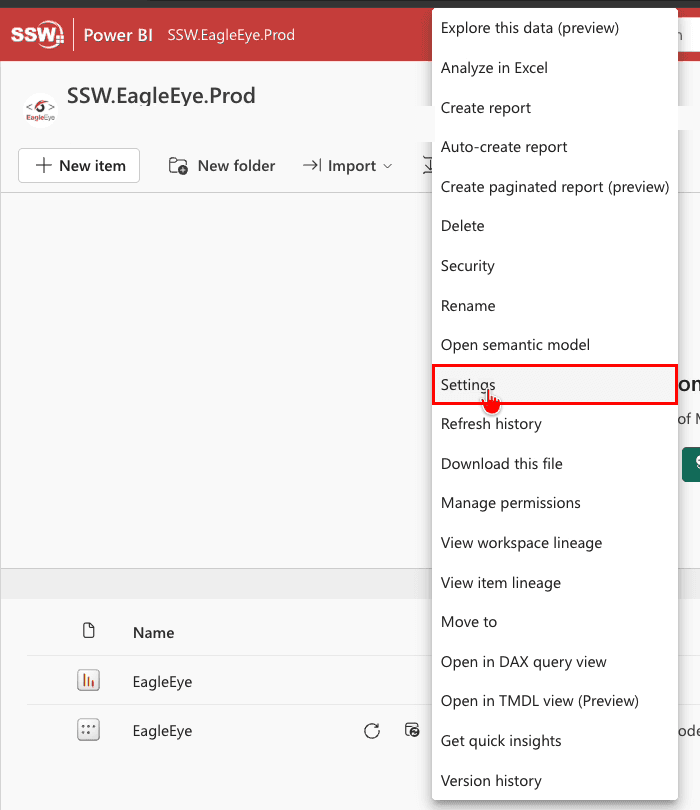
- Next to the EagleEye semantic model, select More options (...) → Settings. A settings pane opens.
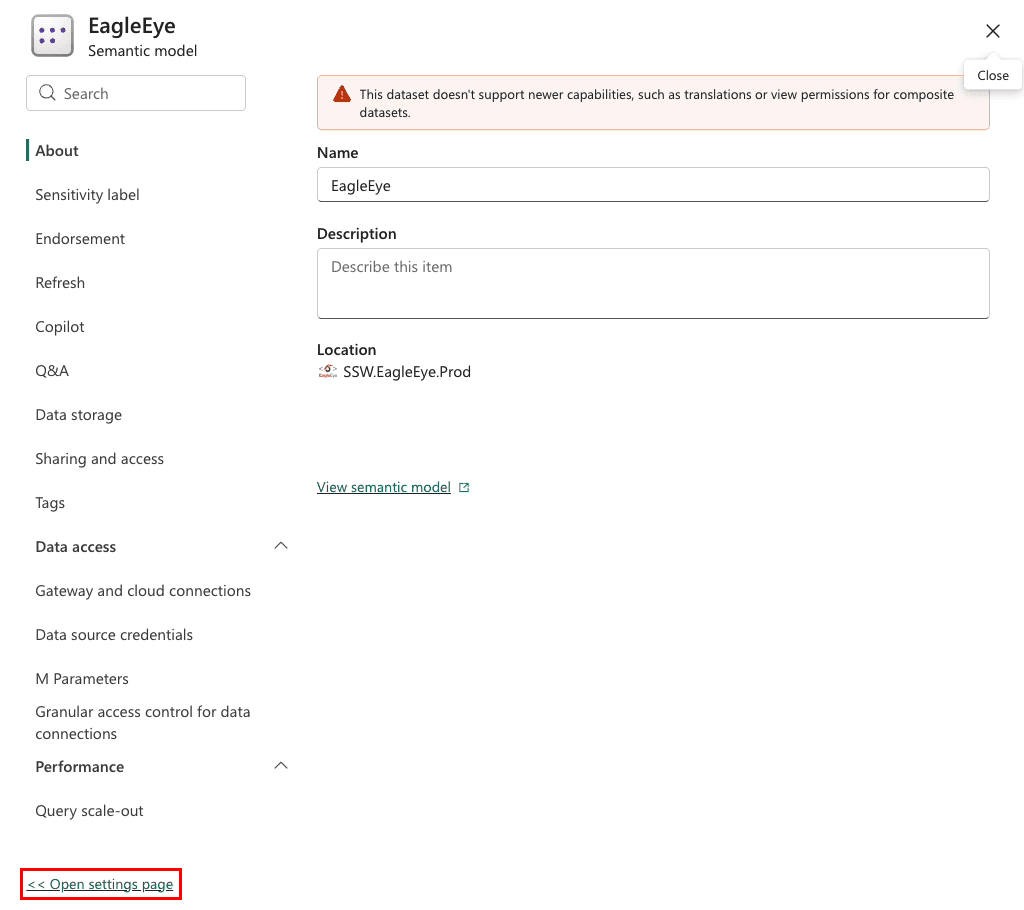
- At the bottom of the pane, click Open settings page. The Semantic models tab opens, with EagleEye selected.
- Scroll down and expand Large semantic model storage format.
- If the toggle shows On, set it to Off and click Apply.

- Click Get it on the update banner or in the notification. You can also open the SSW EagleEye - Power BI page on the Microsoft Marketplace and click Get it now.
- Click Install. The Update app dialog opens.
- Select Update only workspace content without updating the app. This option keeps your workspace name and app name.
- In Select the workspace to overwrite, select your EagleEye workspace. Power BI preselects a workspace for you, and it can be a different one.
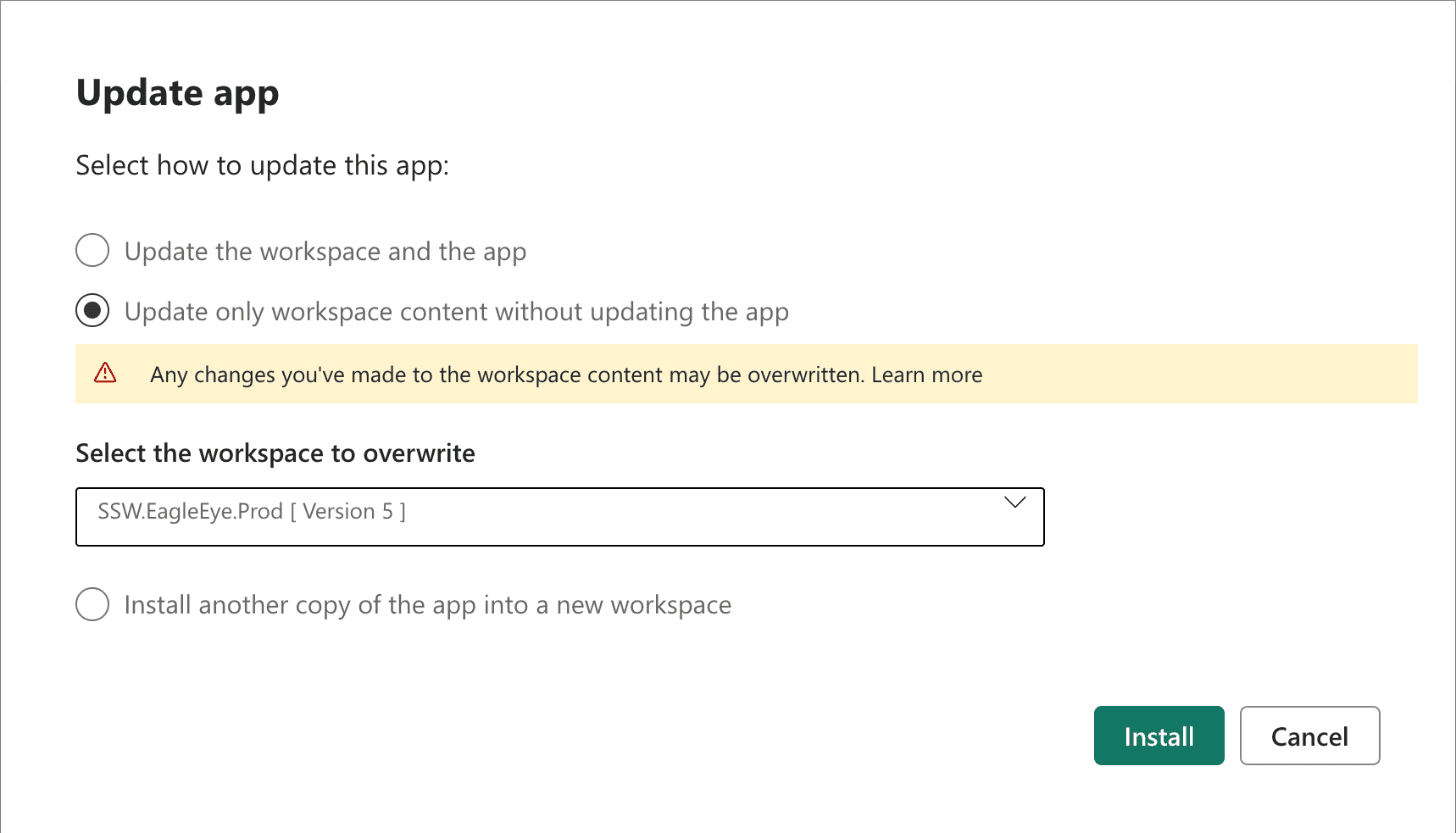
- Click Install. Power BI shows Your workspace was updated!
- Wait for the refresh to finish. Power BI starts it by itself, and a large database can take 30 minutes or more. Until then, the report shows sample data.
- In the workspace, click Update app, then click Update app and Update. Your users now see the new version.
The update keeps these settings, so you don't set them again:
- Your report ID, so the embed link in your EagleEye Portal keeps working.
- Your database parameters and credentials.
- Your refresh schedule.
Check the update
Open the semantic model settings page again, as in step 1, and check these:
- Last refresh succeeded shows today's date, and Next refresh shows a date.
- Large semantic model storage format shows the size of your semantic model. Power BI Pro allows up to 1 GB. Above that, every refresh fails.

Then check that the Power BI report in your EagleEye Portal shows your data.
Troubleshooting
"This app cannot be updated, choose a different app or install another copy of the app."
The semantic model uses Large storage format. Do step 1, then start again from step 2.

The workspace or the app has a new name, such as "SSW EagleEye Template" and a date
You selected Update the workspace and the app. To fix it:
- Rename the workspace in Workspace settings.
- Rename the app in Update app → Setup.
- Check that the report still shows in your EagleEye Portal. If it doesn't, copy the embed link again with steps 8 to 11 of Step 4 - Integrate Power BI report.
The refresh fails
- On the semantic model settings page, click Refresh history and read the error.
- Check the database credentials, as Manage Credentials for Database describes.
- If the refresh still fails, contact SSW and include the error text.
No date for Next refresh
Power BI turns off the refresh schedule after 4 failed refreshes in a row. On the semantic model settings page, expand Refresh and turn the schedule on again.