Table of Contents
Step 4 - Integrate Power BI report
Loading last updated info...

Follow these simple steps to connect your EagleEye database to the Power BI template app and embed the report into your portal.
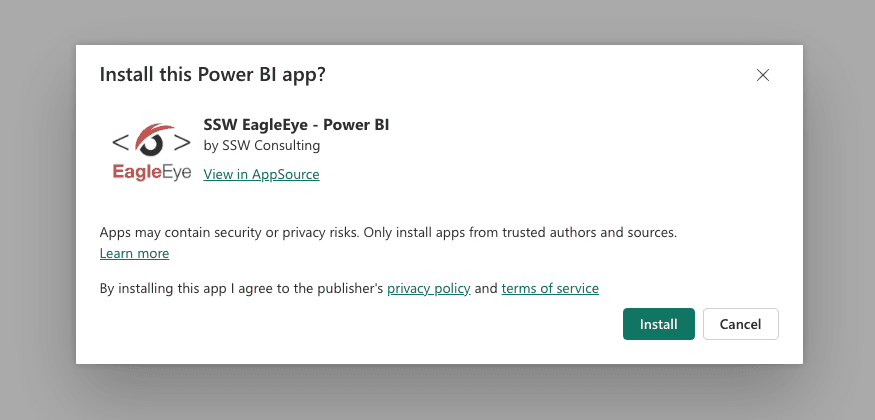
- Go to the SSW EagleEye - Power BI page on the Microsoft Marketplace
- Click Get it now and make sure you're signed in with the same Microsoft account used to deploy EagleEye on Azure
- Click Install
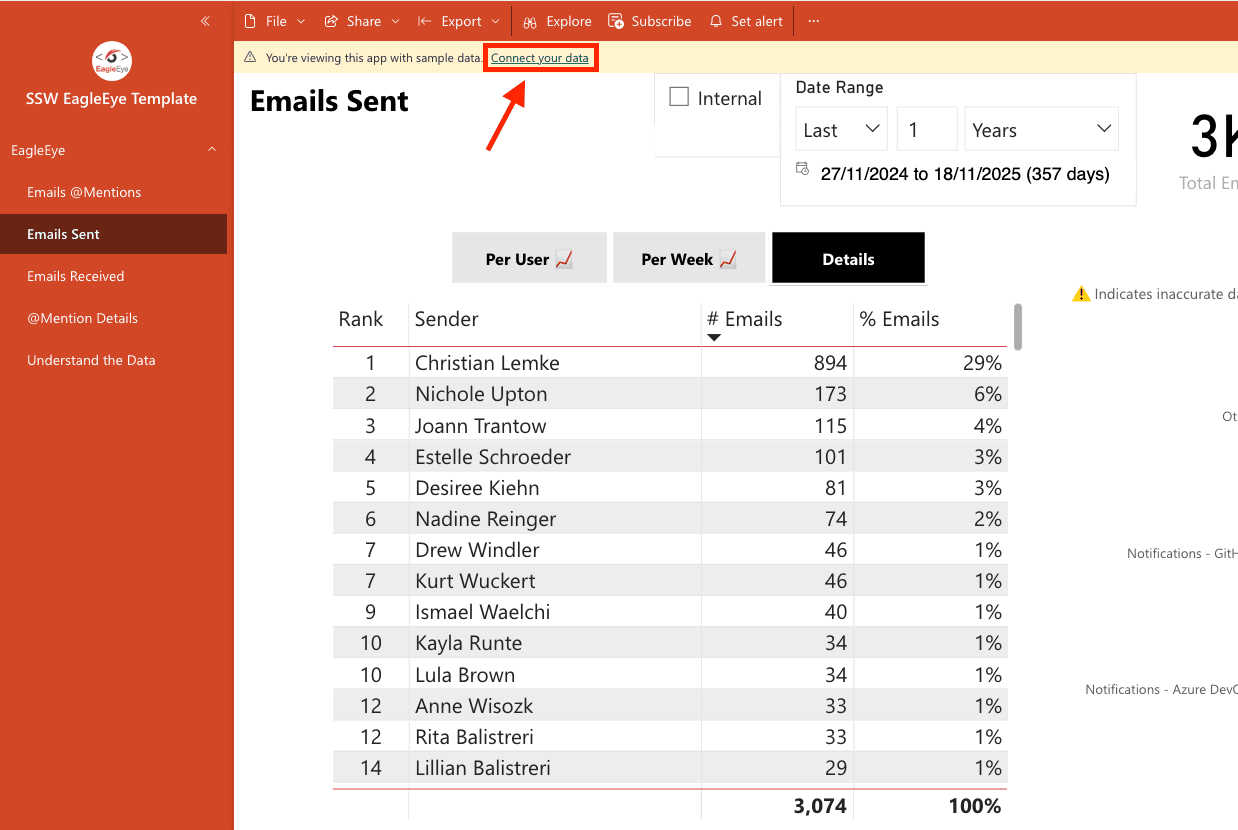
- Open the app → Connect your data
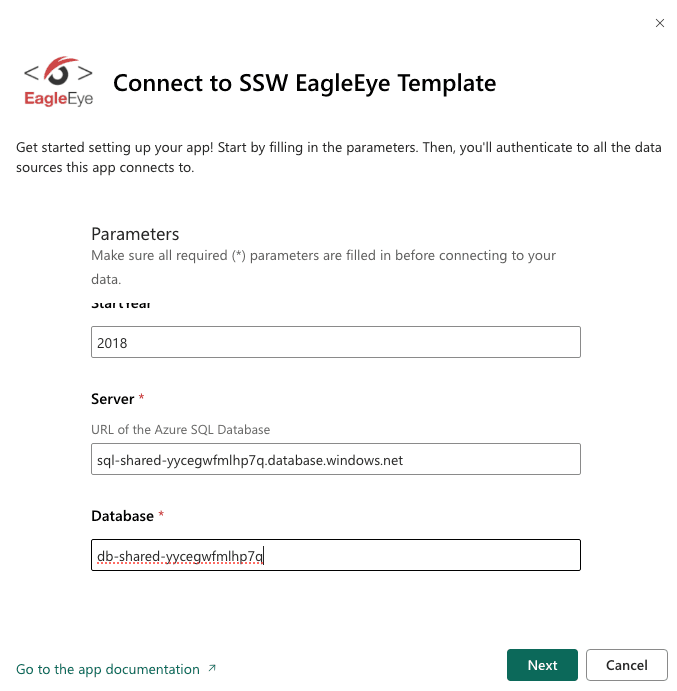
- Enter your Database details and click Next:
- Year (e.g., 2025)
- SQL Server URL (e.g., sql-shared-xxx.database.windows.net)
- Database Name (e.g., db-shared-xxx)

- Enter the Database credentials (the read-only username and password you provided during EagleEye deployment). If you need to find these values, see Manage Credentials for Database.
- Click Sign in and connect. Power BI will load your data
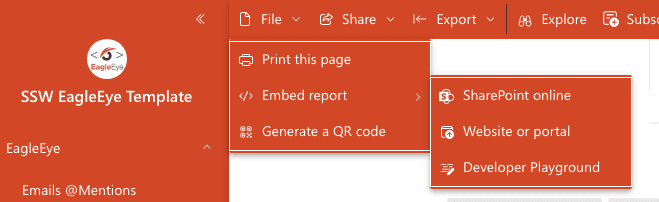
- Go to File → Embed report → Website or portal.
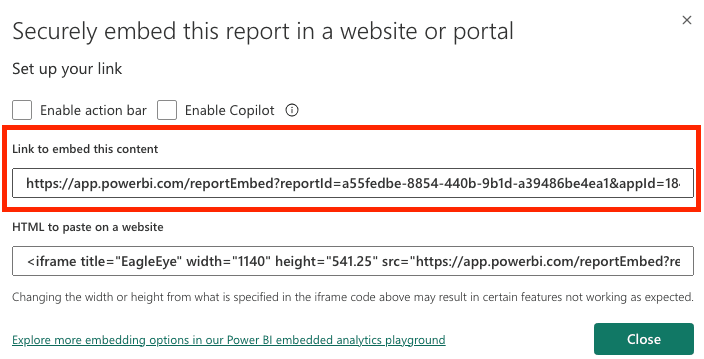
- Copy embed link
- Open your EagleEye Portal → Settings, and paste the link into the Power BI report embed URL field.
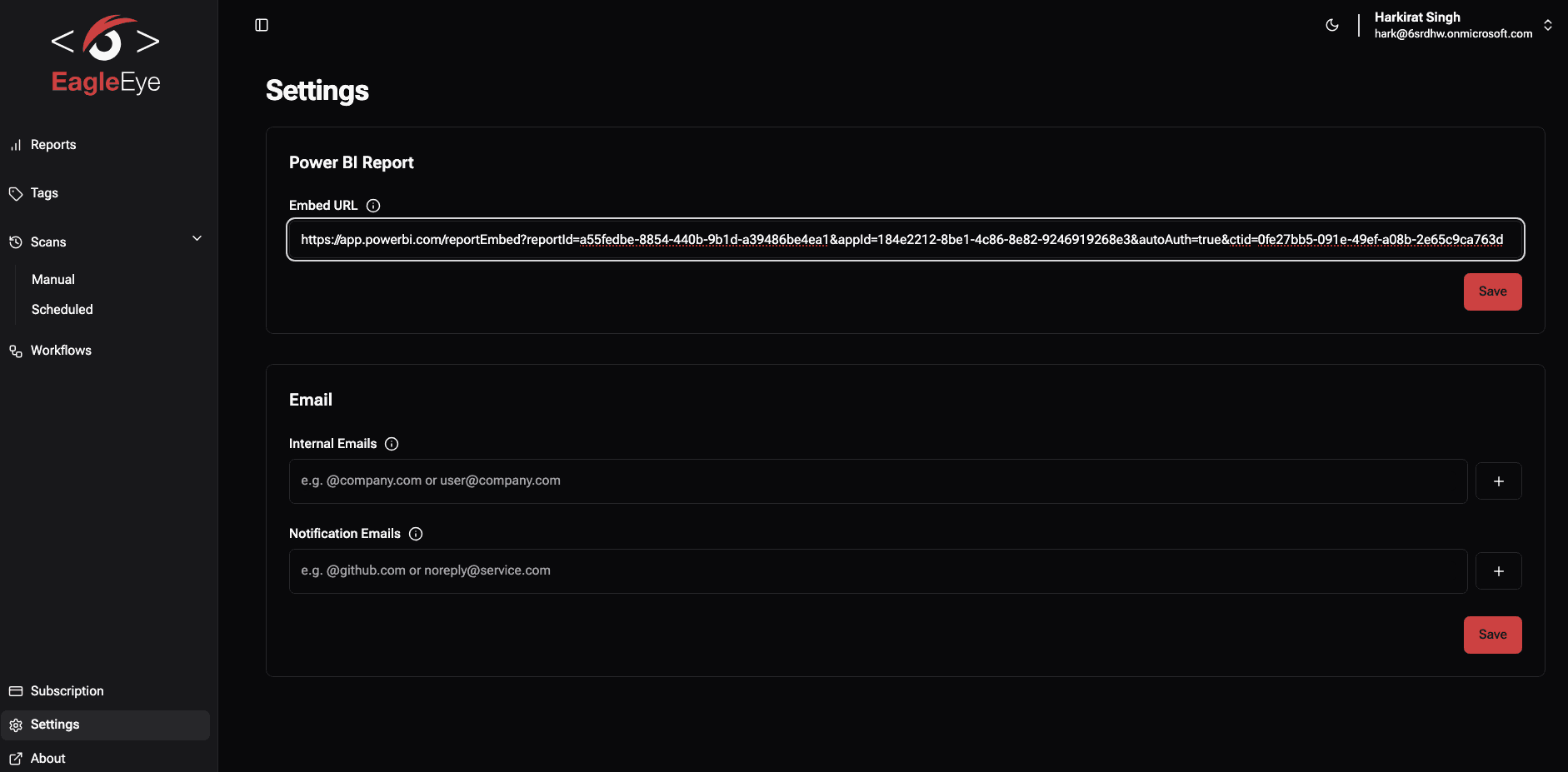
- Click Save.
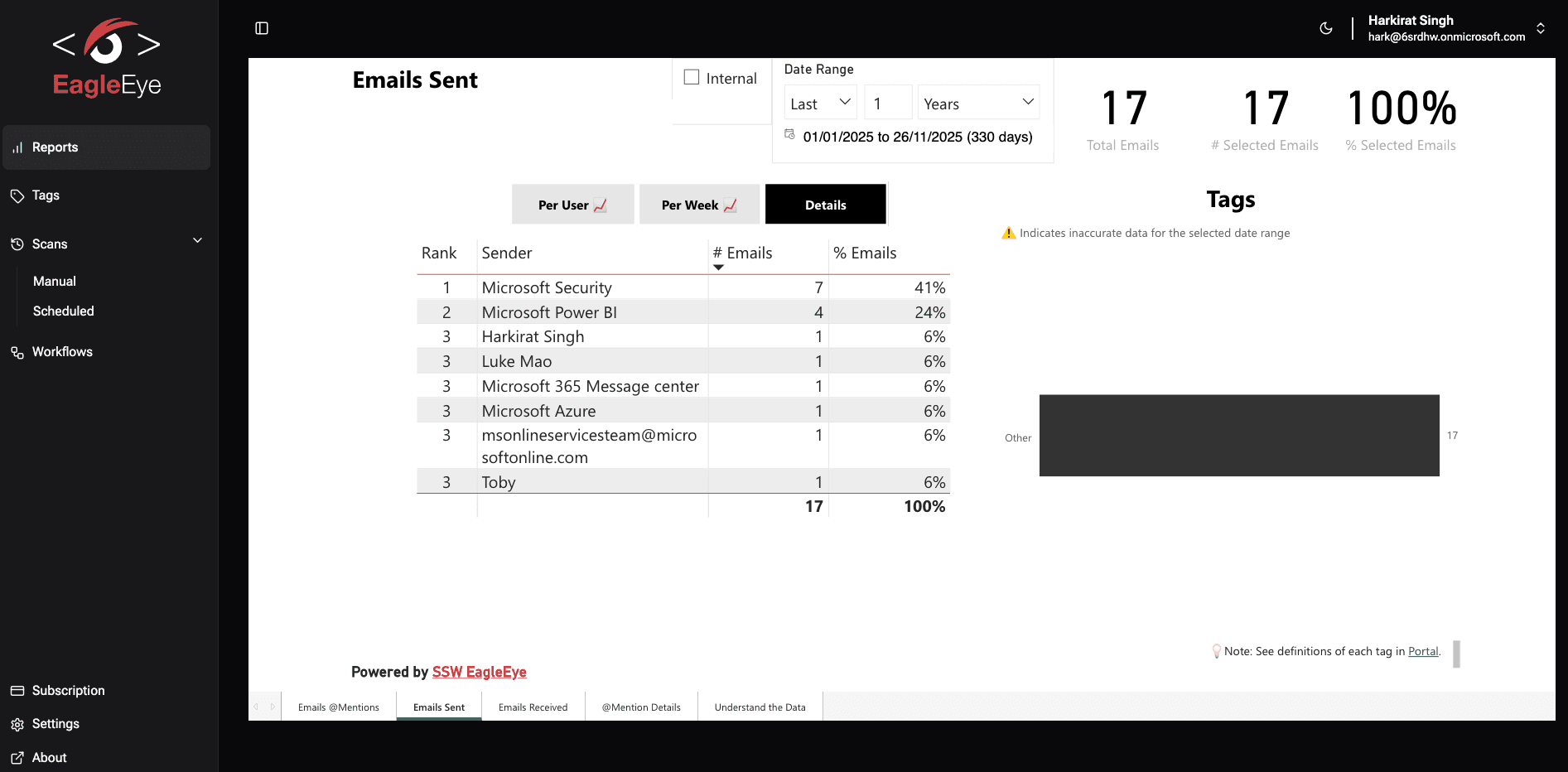
🎉 Your Power BI report should now be visible inside your EagleEye Portal