Table of Contents
Use this guide if you need to find current EagleEye database credentials after deployment.
Required roles and permissions
You need access to the EagleEye managed resource group and Key Vault.
Recommended minimum roles:
- Key Vault Secrets User (or equivalent read access) on the Key Vault
Find database credentials in Azure Portal
- In Azure Portal -> Resource groups, open the resource group used for EagleEye deployment.
- Open the EagleEye managed application project.
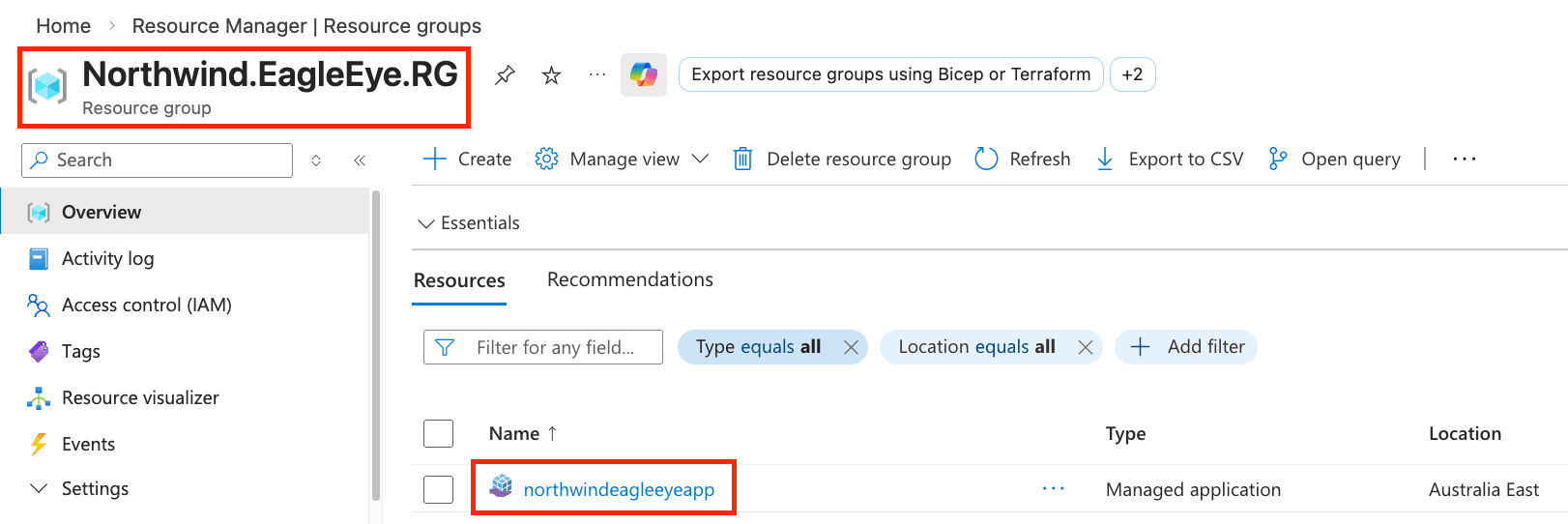
- Open the Managed resource group (for example,
mrg-ssweagleeye-xxx).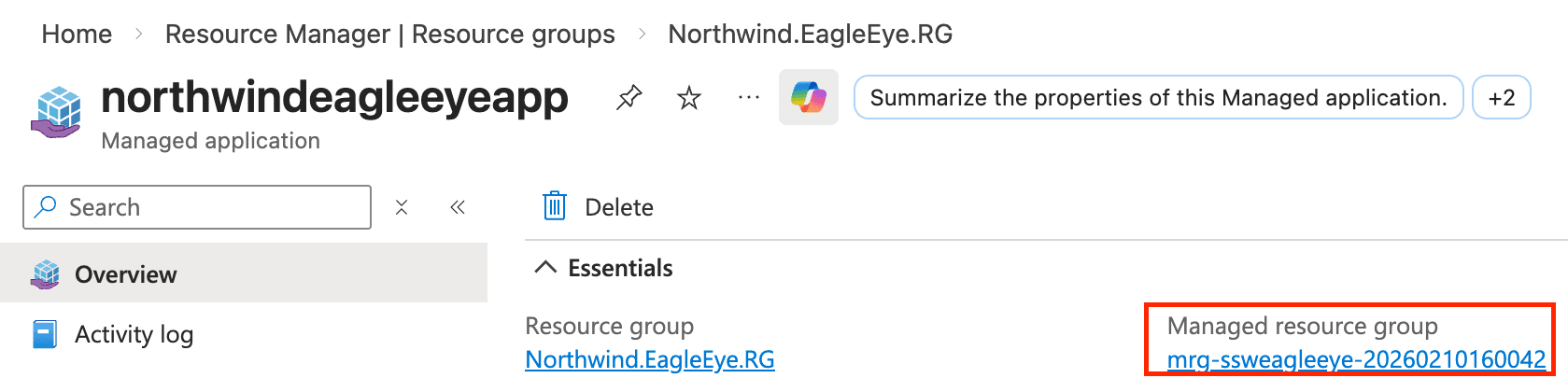
- Open the shared Key Vault (for example,
kv-shared-xxx).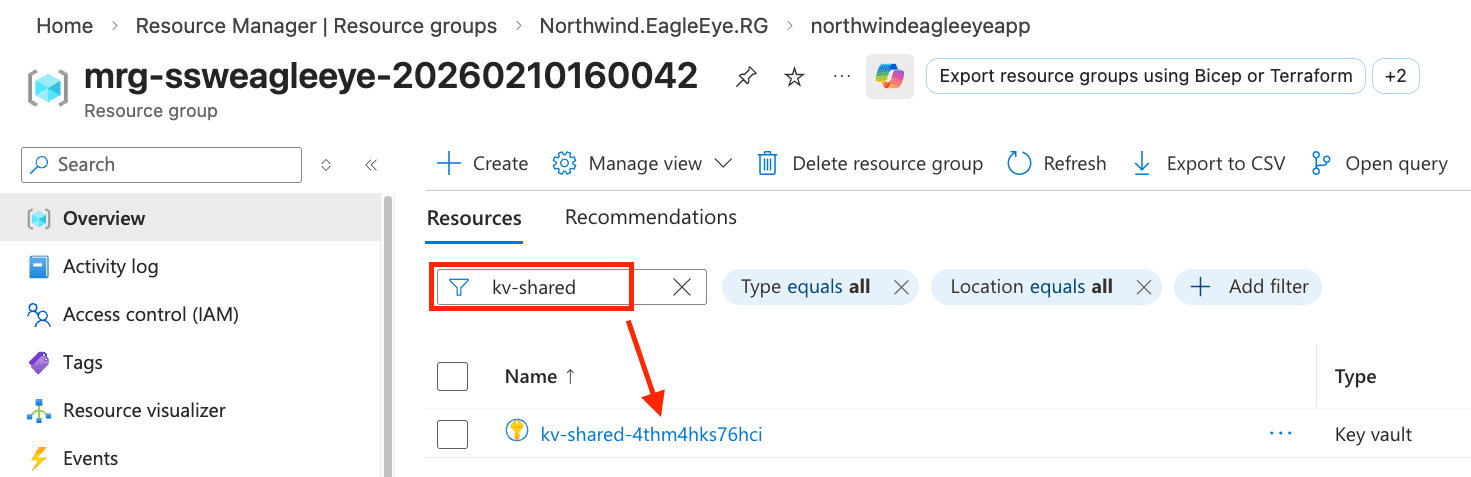
- Go to Secrets and open the required secret:
Database-ReadOnly-UsernameDatabase-ReadOnly-PasswordDatabase-ReadWrite-UsernameDatabase-ReadWrite-PasswordDatabase-Admin-UsernameDatabase-Admin-Password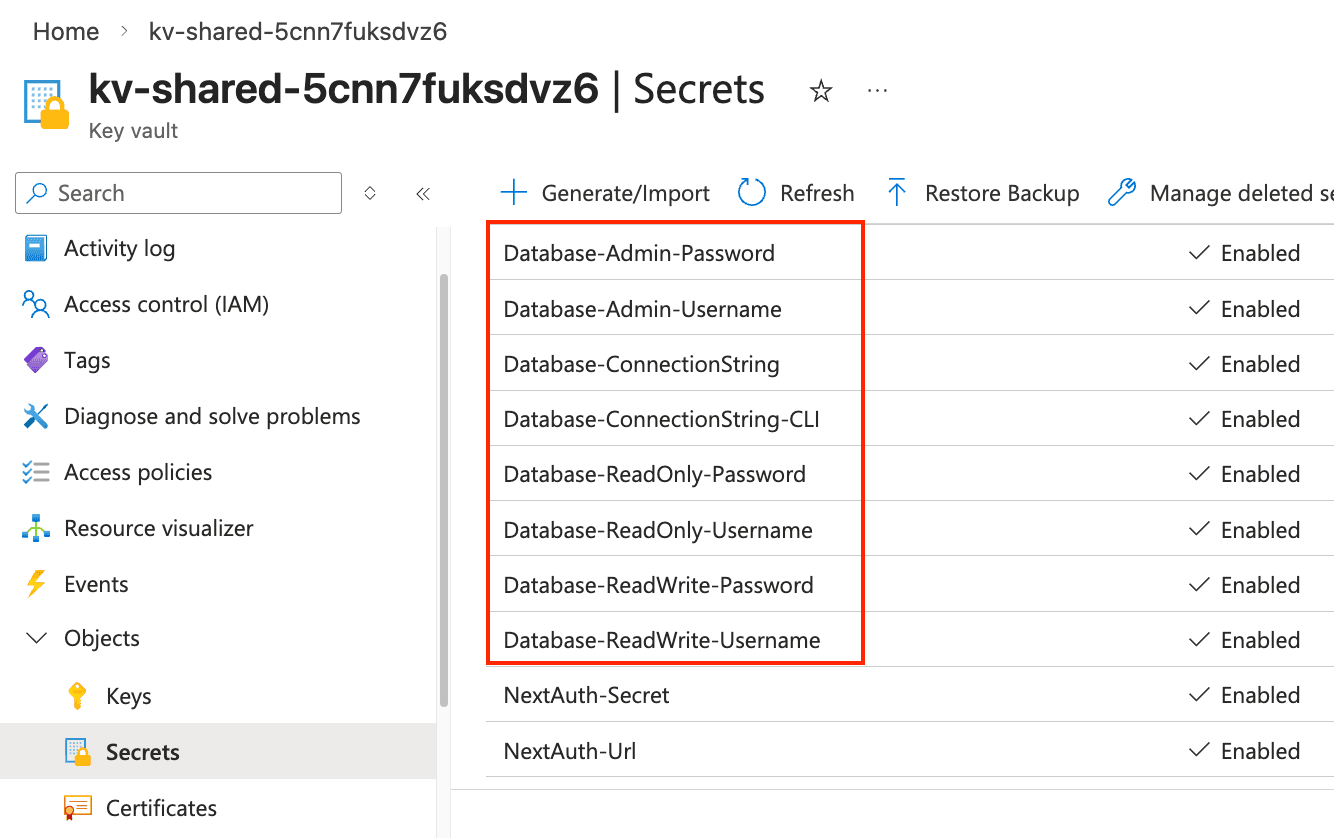
- Click the secret name to open its versions.
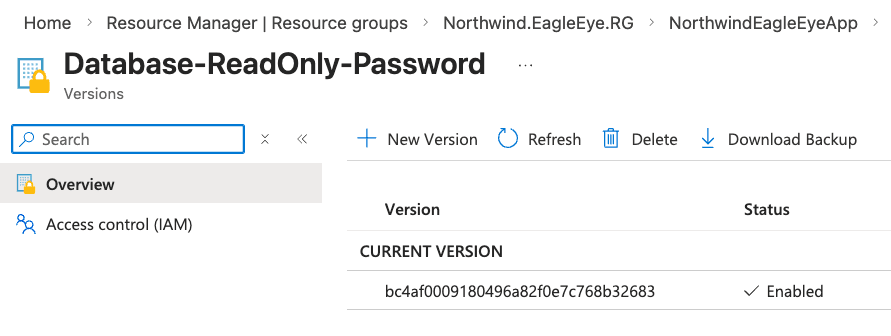
- Select the latest (current) version.
- Click Show Secret Value to reveal the value, then copy it as needed (for example, for Power BI setup).
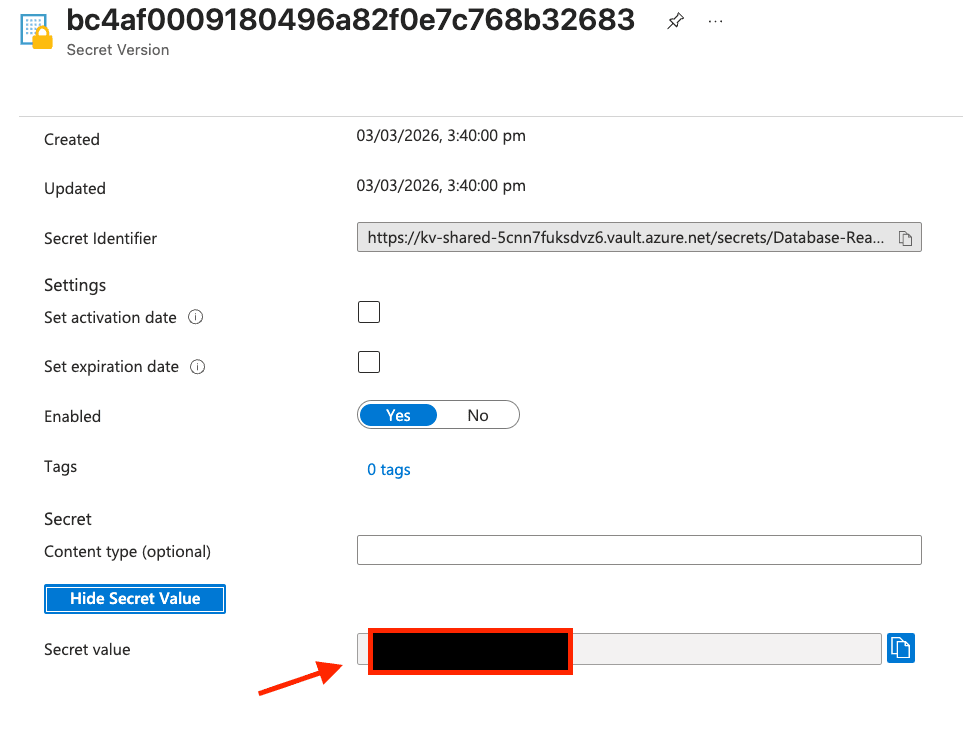
Tip: For Power BI setup, use theDatabase-ReadOnly-UsernameandDatabase-ReadOnly-Passwordvalues.
Changing database credentials
This guide does not cover changing database usernames/passwords.
⚠️ Important: Changing a database credential value in Key Vault does not change the underlying Azure SQL user credentials (Admin,ReadWrite,ReadOnly).
For now, use this guide for finding credentials only.
In a future version of EagleEye, you will be able to change database credentials directly from the EagleEye Portal.